Guide
When samples stay missing
A fix can only find what is in the folders it searches. What stays missing is listed by where it came from, because what helps differs: a pack is installed again, an old drive is plugged in, a folder is added.
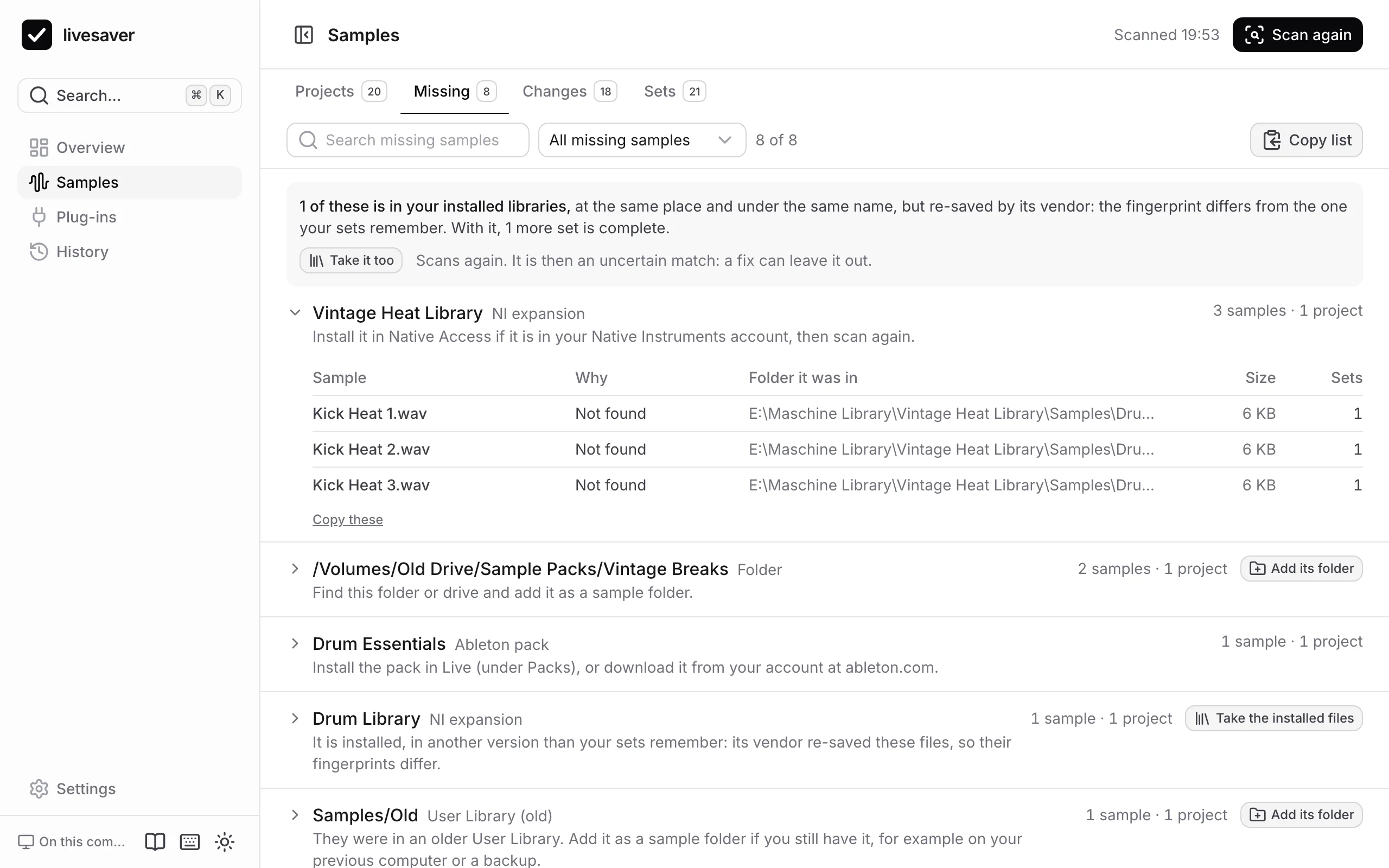
By where they came from
Open Samples › Missing. Each group is one source, with how many samples and projects depend on it.
| The samples came from | What helps |
|---|---|
| an Ableton pack | Install the pack in Live (under Packs), or download it from your account at ableton.com. |
| the Core Library of an older Live | Add that version's Core Library as a sample folder, if you still have it. |
| a Native Instruments expansion | Install it in Native Access, then scan again. |
| an older User Library | Add it as a sample folder: from your previous computer, or a backup. |
| another project | Add an old copy of that project folder as a sample folder. |
the project's own Samples folder | Add an older copy of the project folder as a sample folder. |
| a folder or a drive | Find it, plug it in, and add it as a sample folder. |
Add a folder and scan again
Where adding a folder helps, the group has a button for it: Add its folder. Choose the folder, then scan again. What the folder has is found, wherever in it the files lie now.
It does not have to be the exact folder. A whole backup drive works too: livesaver looks through all of it and recognises the files by their fingerprint.
Installed libraries
Vendors such as Native Instruments sometimes save their samples again when a library is updated: the same audio, a slightly larger file. In a folder marked Contains installed libraries, livesaver accepts such a file when the audio in it is the same. /Users/Shared is marked from the start.
A library can also be installed in another version than your sets remember: its vendor gave the files other tags, and with them another fingerprint. Nothing confirms such a file, so it counts as missing, although it lies at the same place under the same name. The scan says when that is so: “… of these are in your installed libraries”, on the overview and above the list of missing samples, with Take them too. That switches on Also accept a library file with another fingerprint (also in the settings) and scans again. Such a match is uncertain, and listed as such: a fix can leave it out.
Live itself lists these samples as missing, too: it looks for the file it remembers, not for one that sounds the same.
Why a file that is there is not taken
- Different content: a file of that name exists, but its audio is not the one the set used. Taking it would change your music without telling you.
- Several candidates: several files of that name fit, and they differ. livesaver does not guess.
- It lies in a folder that was not searched. Add the folder.
- The folder could not be read. macOS keeps apps out of some folders until you allow it. The overview says how many folders could not be read; allow access when macOS asks, or give your terminal Full Disk Access in System Settings › Privacy & Security.
Take the list with you
Copy list copies the missing samples of a group, or of all groups, as text: name, where it was, where it came from. Handy for a search of your own, or to ask someone who may still have the files.
Fix missing samples
A set that has lost its samples opens in Live with “Media files are missing”. livesaver finds the files again by what they are, puts them into the project, and points the set at them, for every project at once.
Plug-ins
Live finds a plug-in by its format and its id, never by its name. livesaver reads which plug-ins your sets use and compares them with what is installed, the way Live does, so you know before you open a set what will be missing in it.